Getting Started
A quick guide to set up and run your first bot instance.
Request access
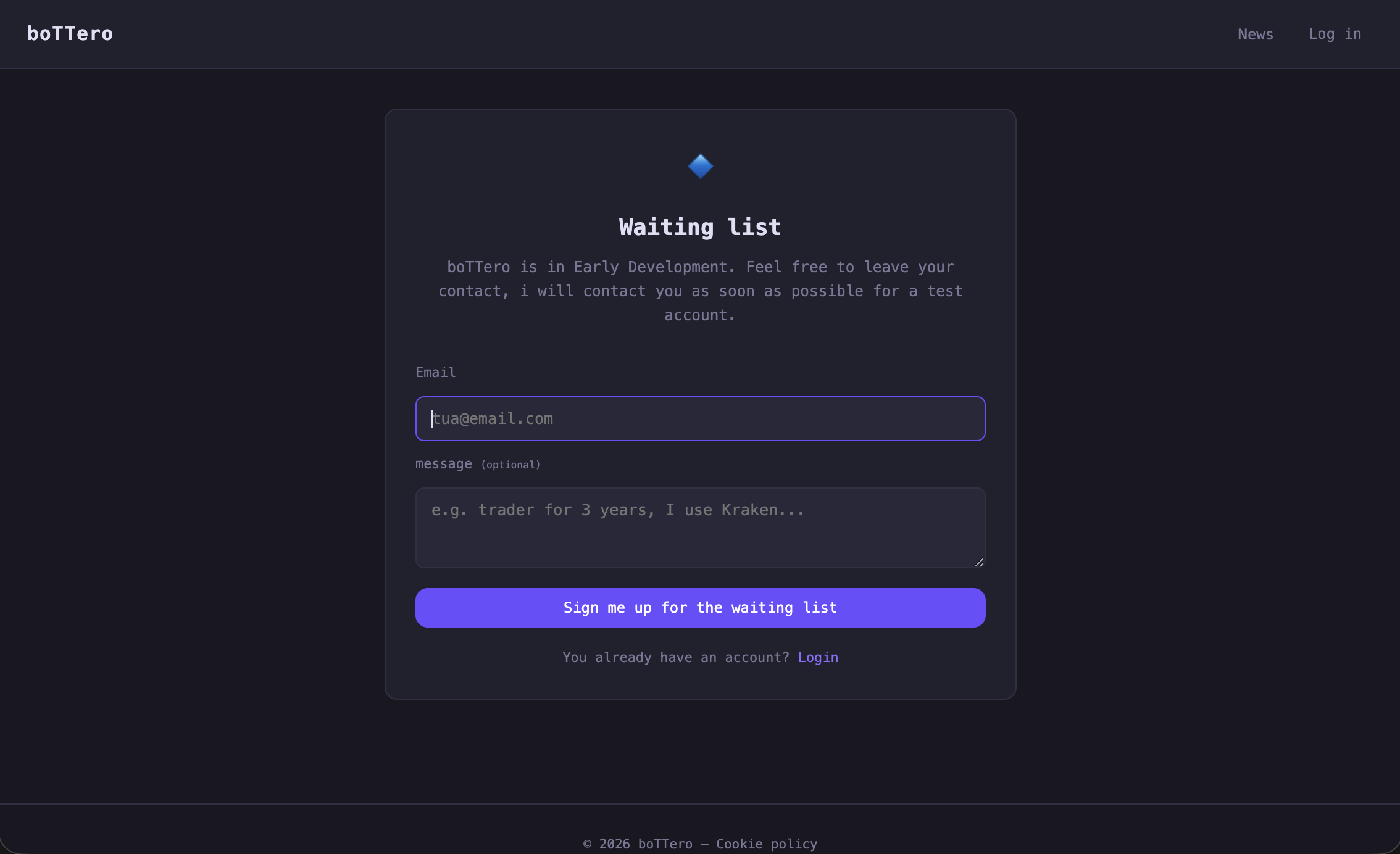
boTTero is invite-only. From the homepage, click Join the waitlist and leave your email. Once your access is approved you'll receive an invitation link by email.
Create an instance
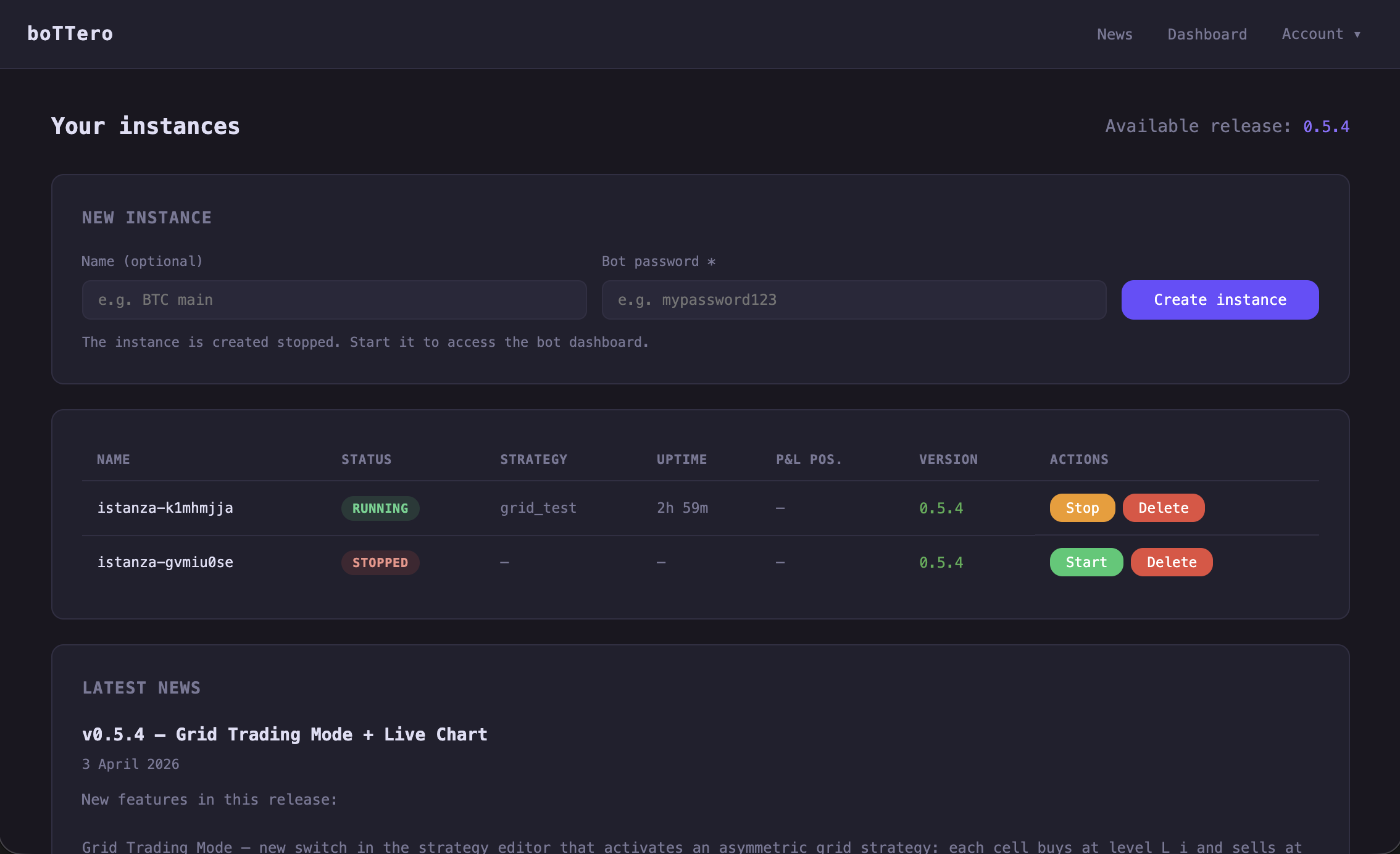
After login you land on the Dashboard. Each bot instance runs independently with its own strategy and trading pair. To create one, fill in the name and a bot password, then click Create instance. The instance starts stopped — press Start when ready.
The bot dashboard
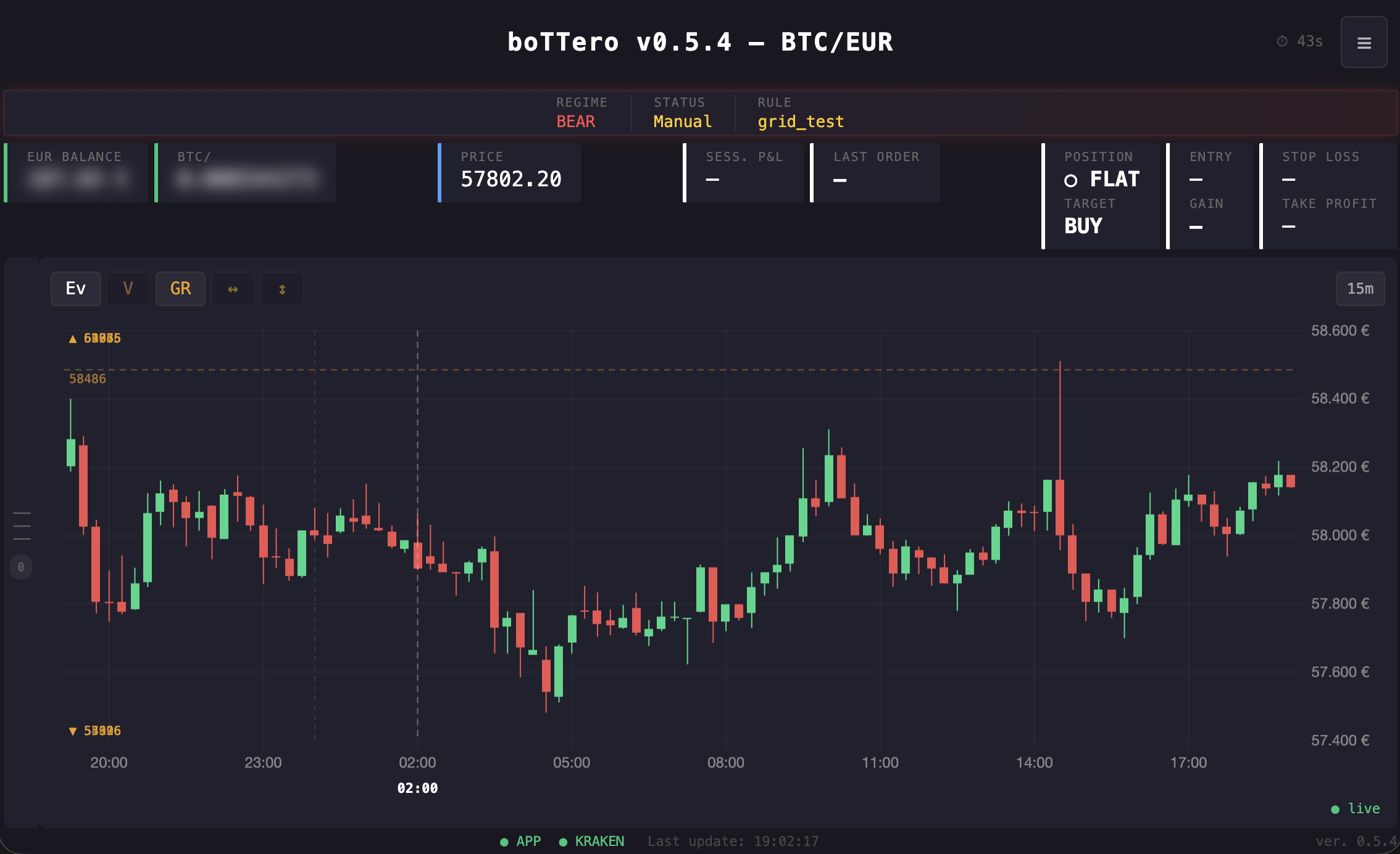
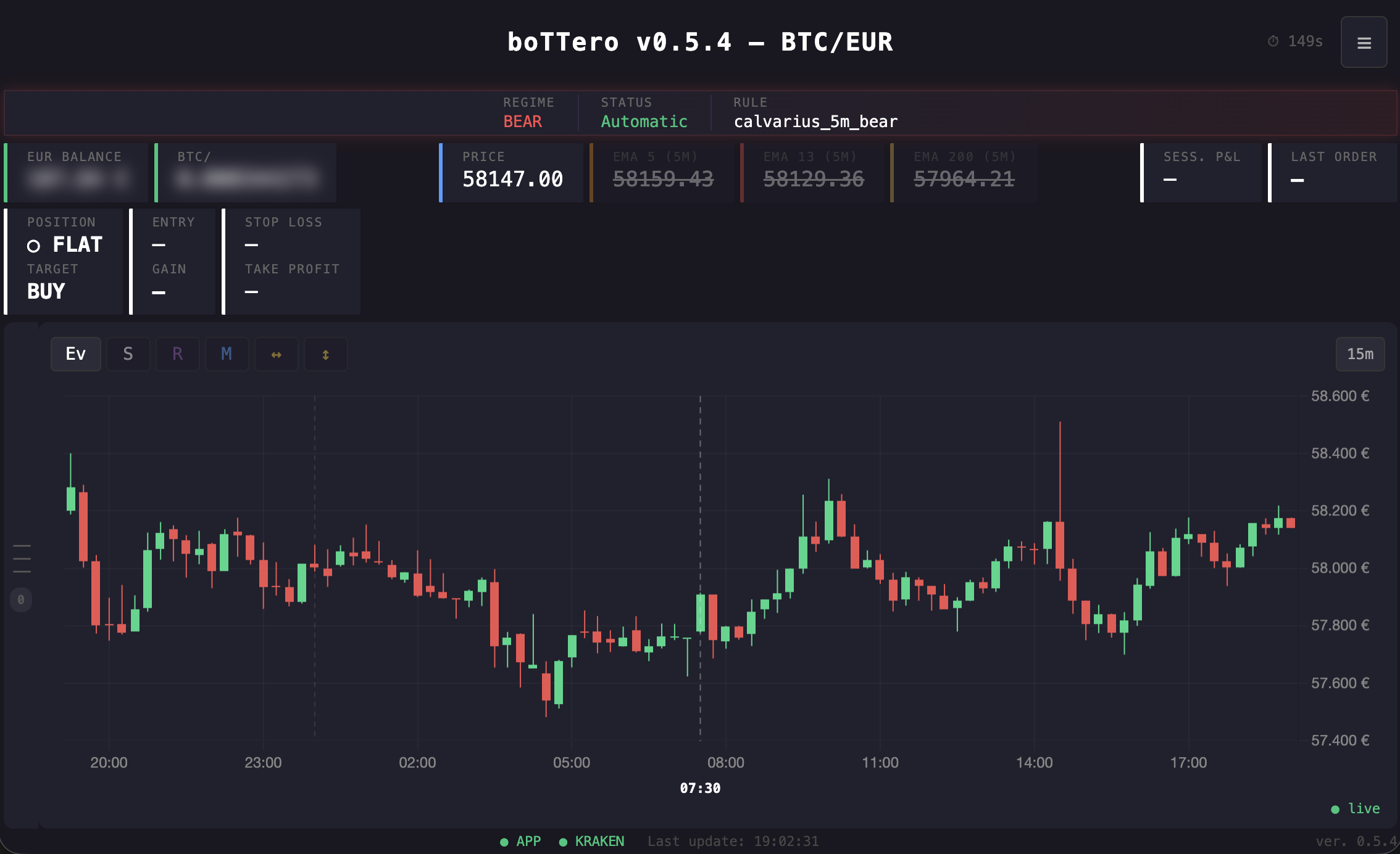
Once started, each instance has its own live dashboard with a real-time candlestick chart, current market regime, active strategy, balance, and open position. In Automatic mode the bot selects the best preset based on market conditions — no manual intervention needed.
Trade History
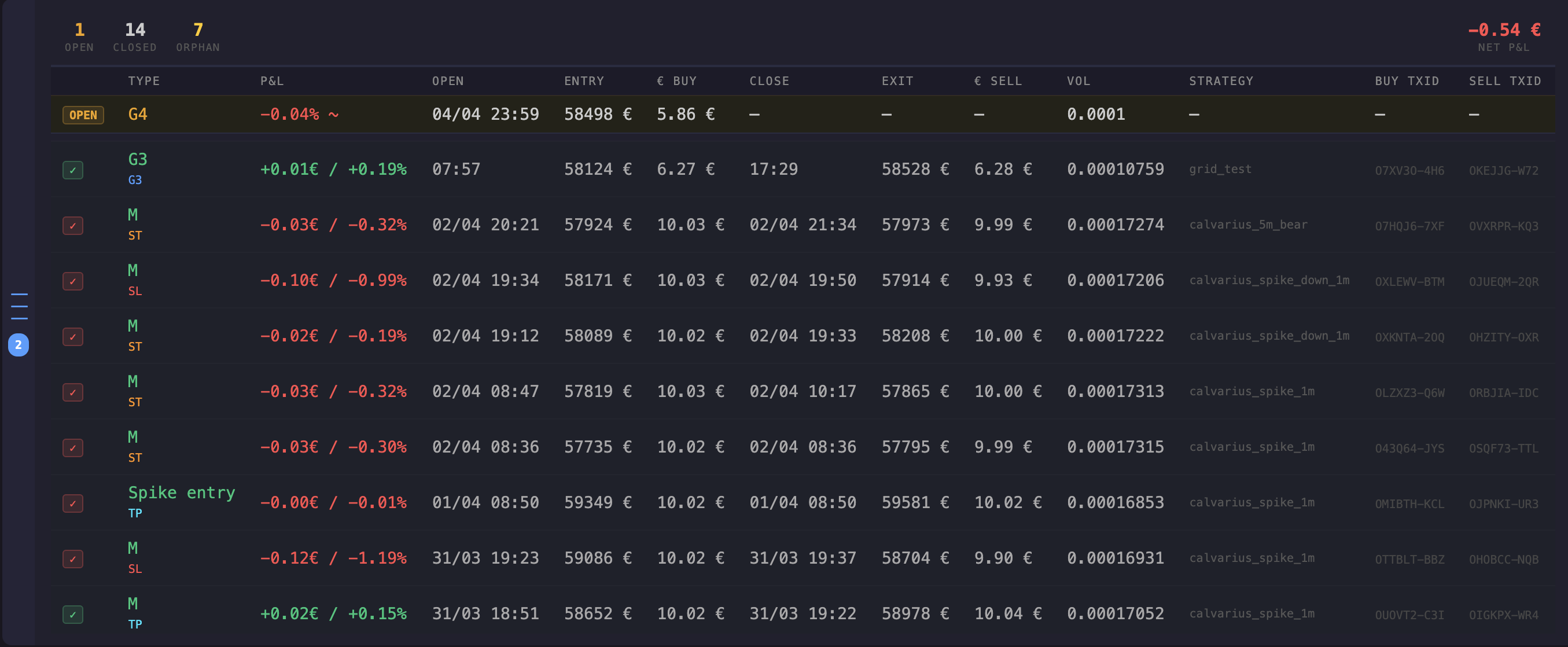
The Trade History table lists all trades executed by the bot. Each row shows the trade type, P&L (absolute and percentage), open/close timestamps and prices, volume, and the strategy preset that triggered it. The header displays the total count of Open, Closed, and Orphan trades, along with the overall net P&L.
- Open — positions currently active.
- Closed — completed trades (TP, SL, or manual exit).
- Orphan — trades from previous sessions not matched to the current one.
The menu
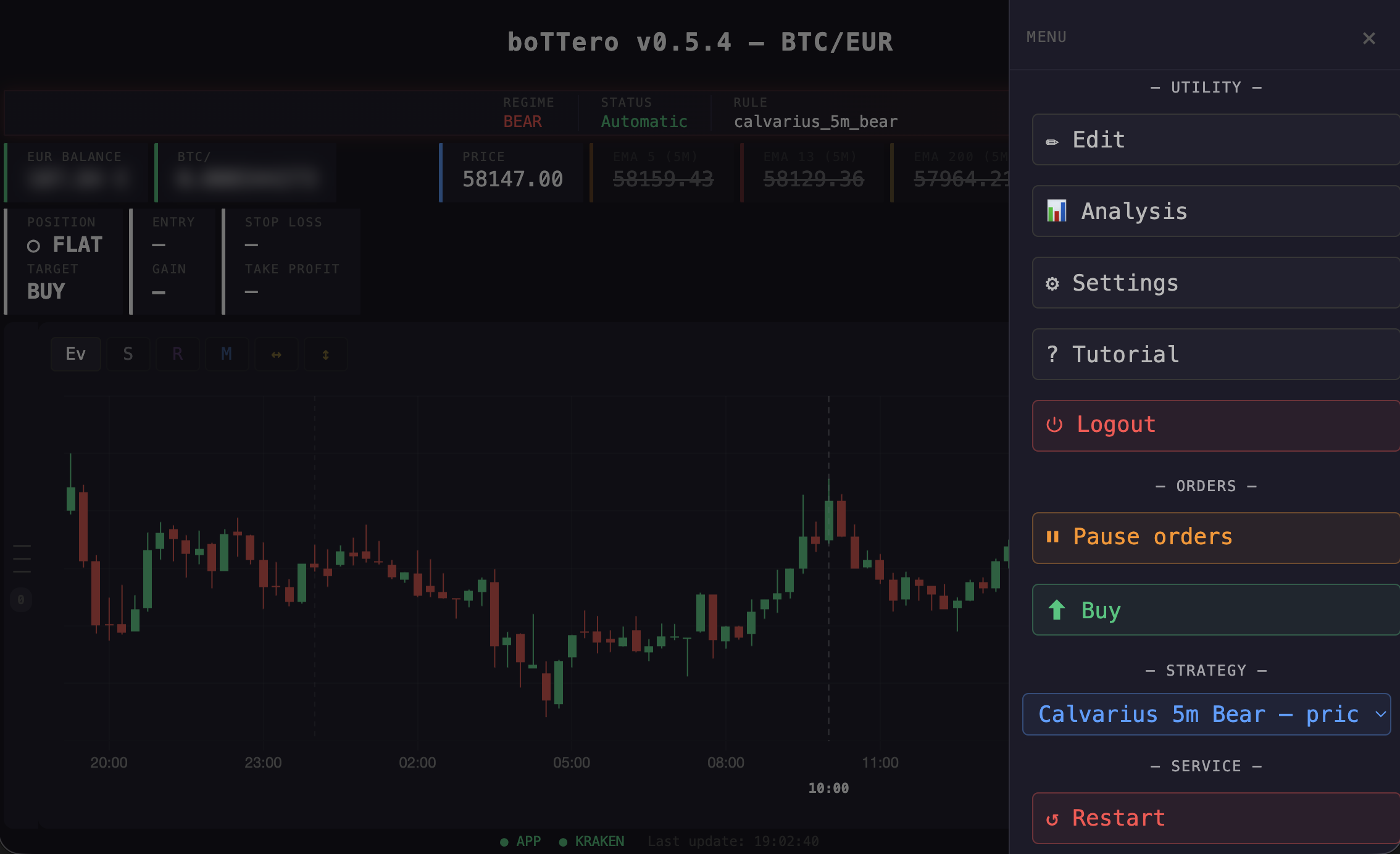
Tap the ≡ icon (top right) to open the side menu. From here you can access the Strategy Editor, Regime Analysis, Settings, the log viewer, manually place or pause orders, and restart the bot.
Strategy Editor
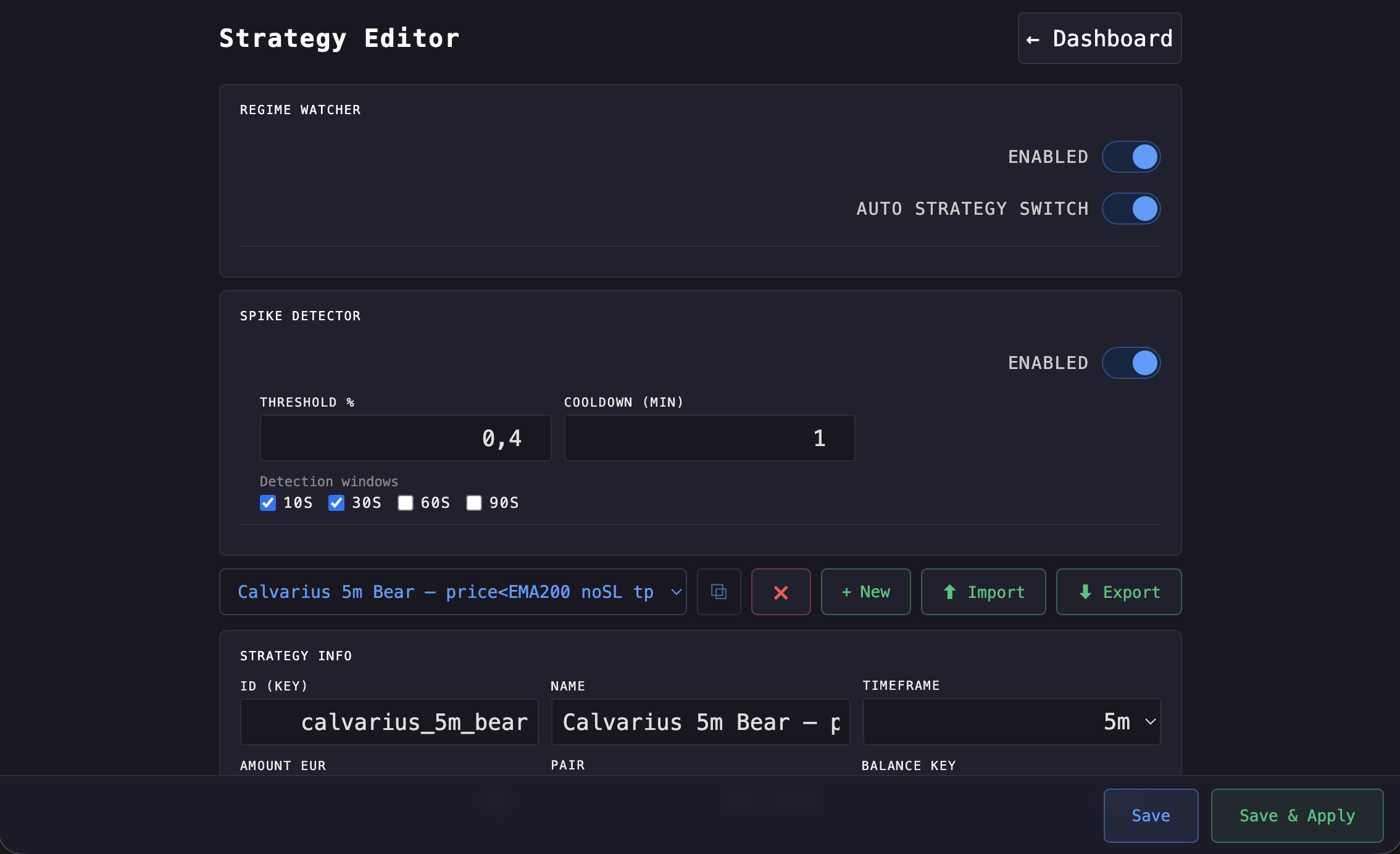
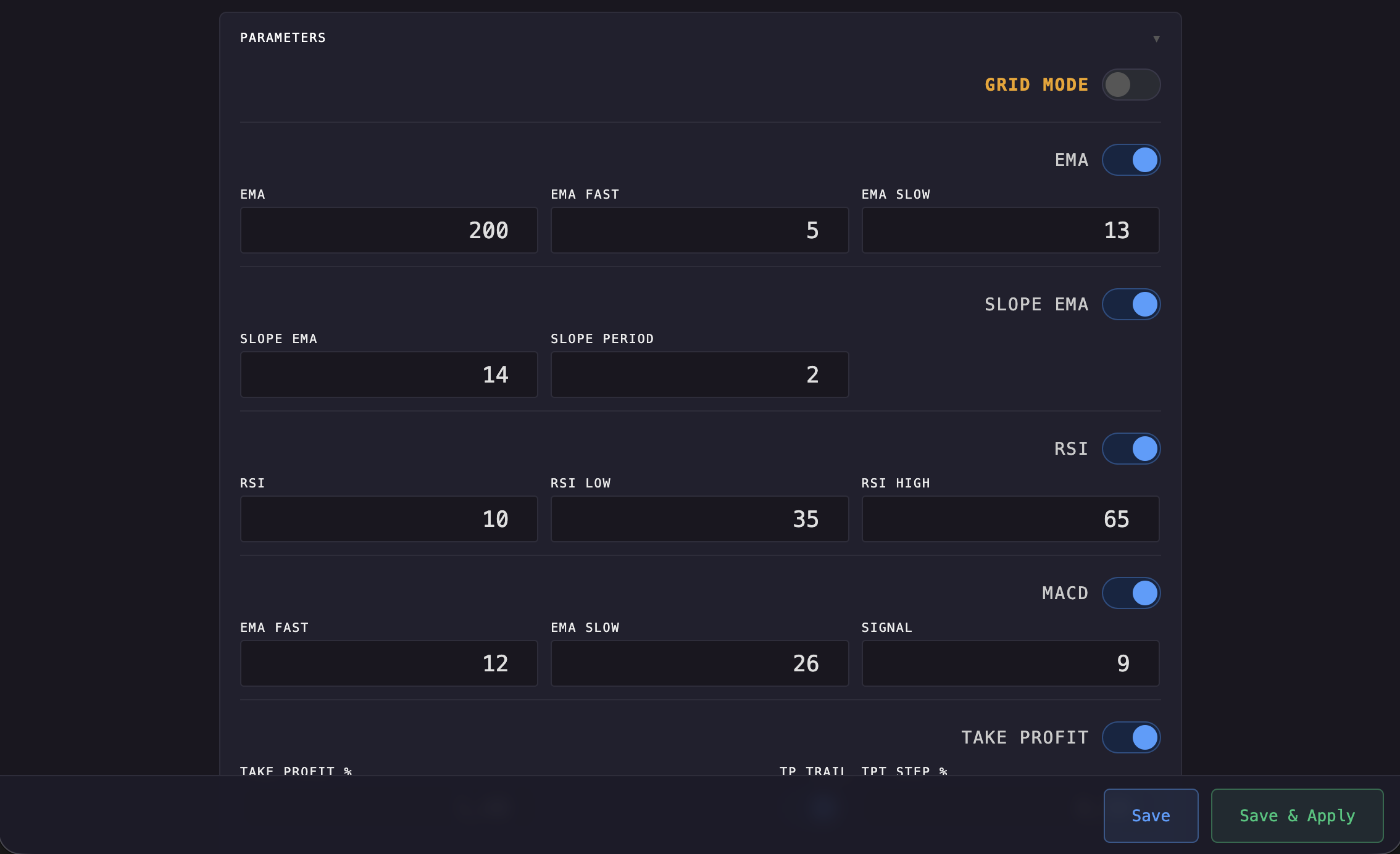
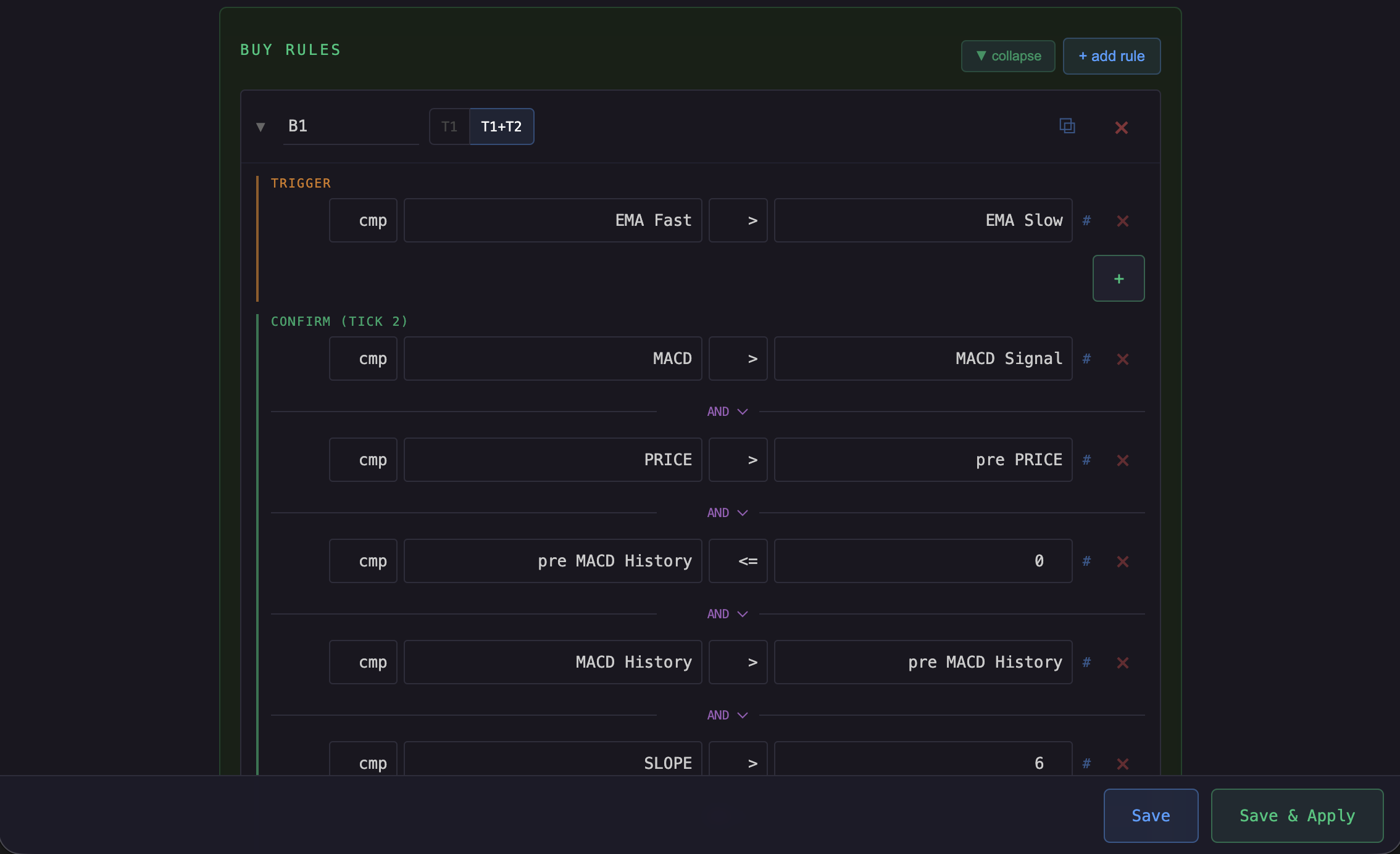
The Strategy Editor has three sections:
- Regime Watcher — enables automatic strategy switching and the Spike Detector (protects against sudden price spikes).
- Parameters — configure indicator values: EMA, RSI, MACD, Slope, Take Profit, Grid Mode.
- Rules — define entry conditions with a visual rule builder, no code needed. Conditions are combined with AND logic.
Click Save & Apply to apply changes immediately without restarting the bot.
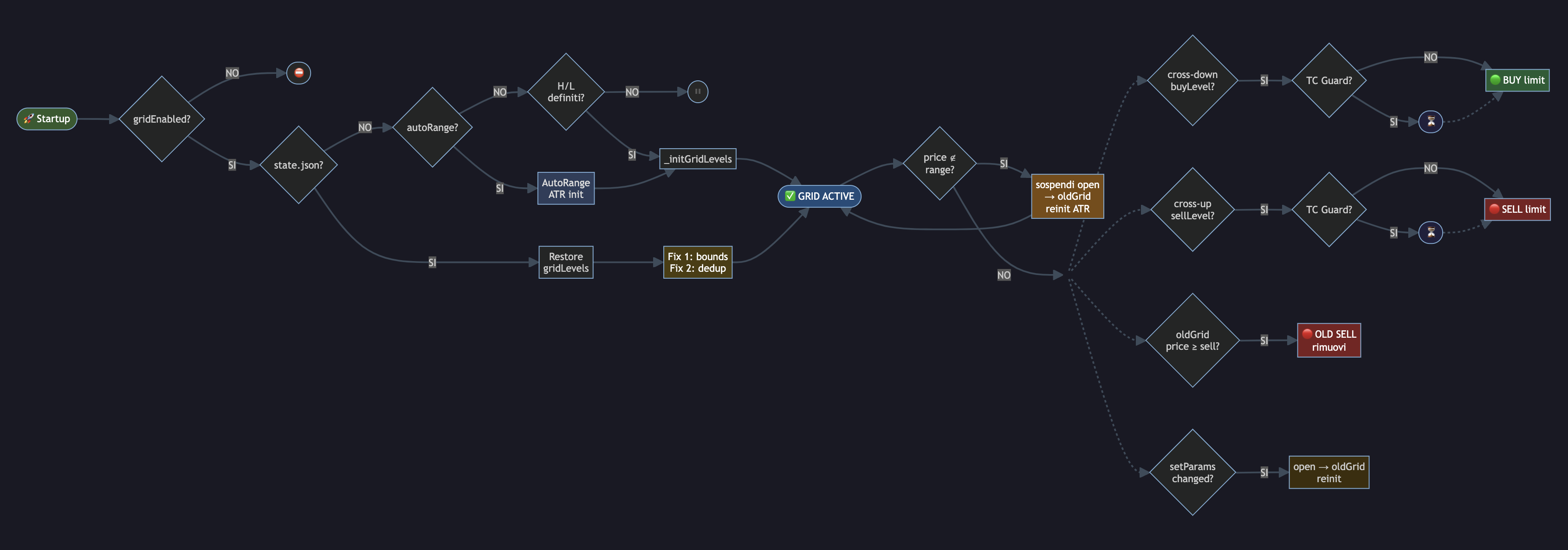
When Grid Mode is enabled, the bot places a ladder of sell orders above the entry price. The diagram below shows how grid activation and order management work in relation to the main strategy cycle.

Settings & API keys
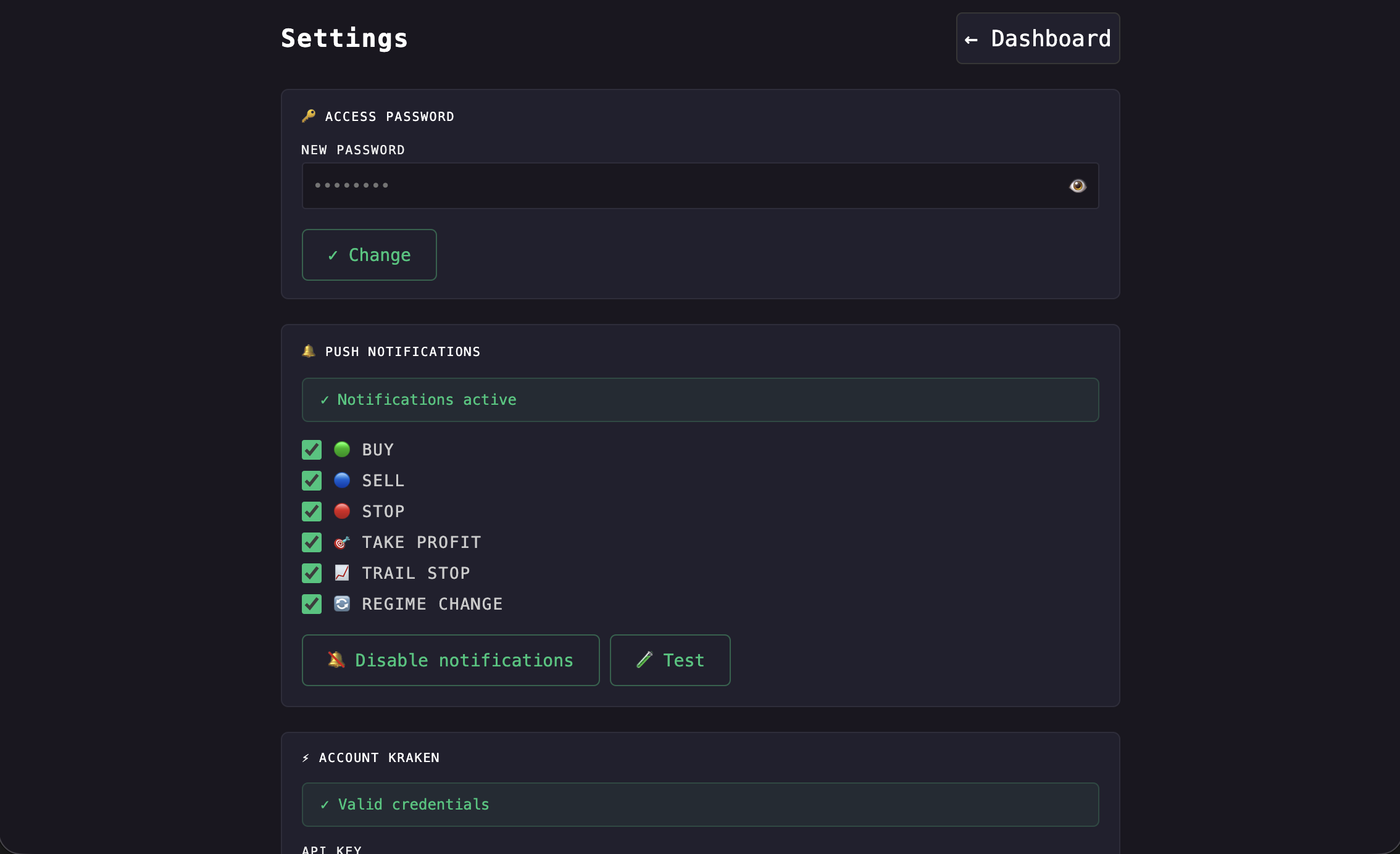
In Settings you can:
- Change your bot access password.
- Connect your Kraken API key and secret — required for live trading.
- Enable push notifications for trade events: BUY, SELL, STOP, TAKE PROFIT, REGIME CHANGE.
Log & System
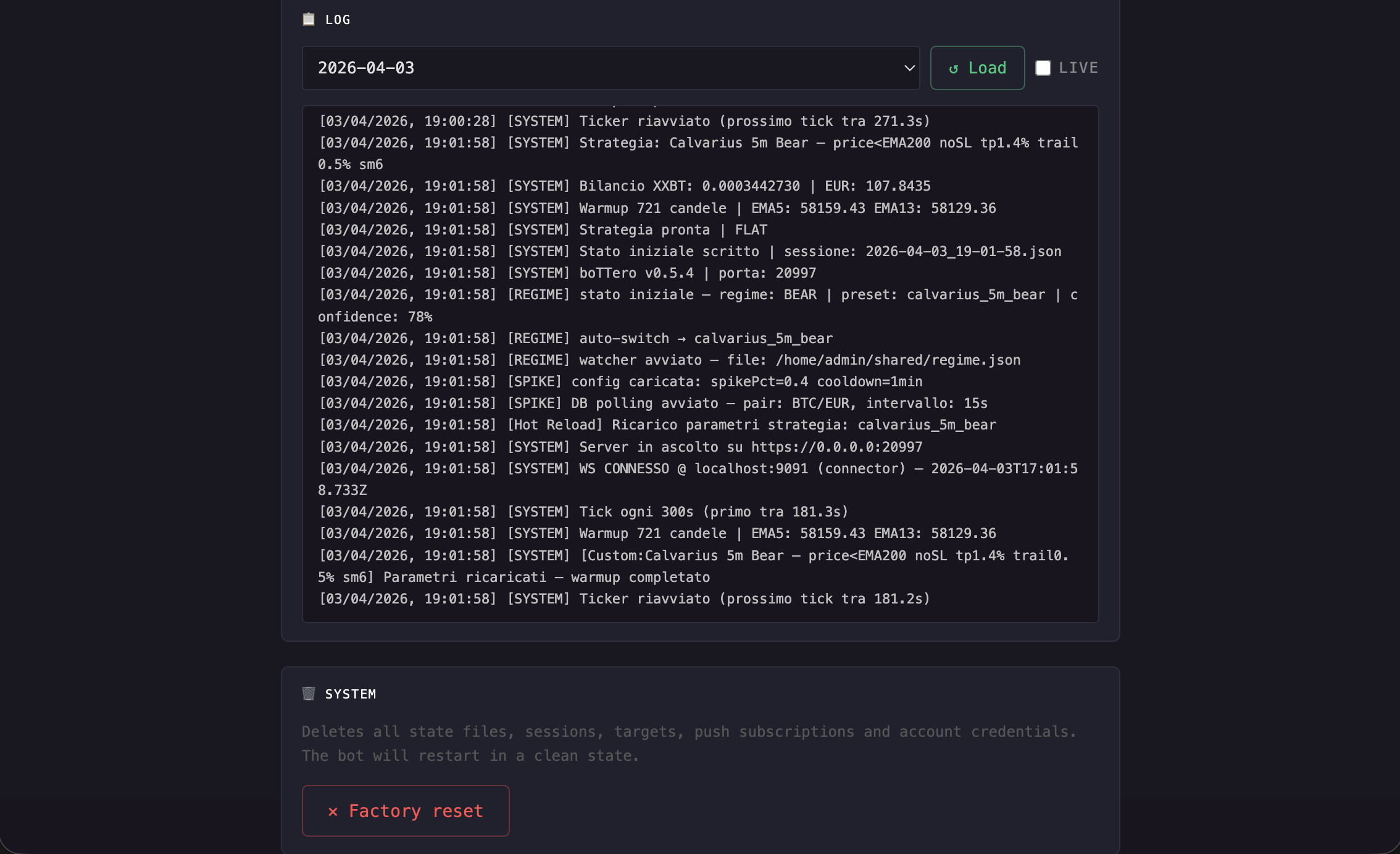
The Log tab shows real-time and historical bot events — useful to verify the bot is running correctly and to diagnose issues. The System section at the bottom lets you perform a Factory Reset: this wipes all state, sessions, and credentials and restarts the bot in a clean state.
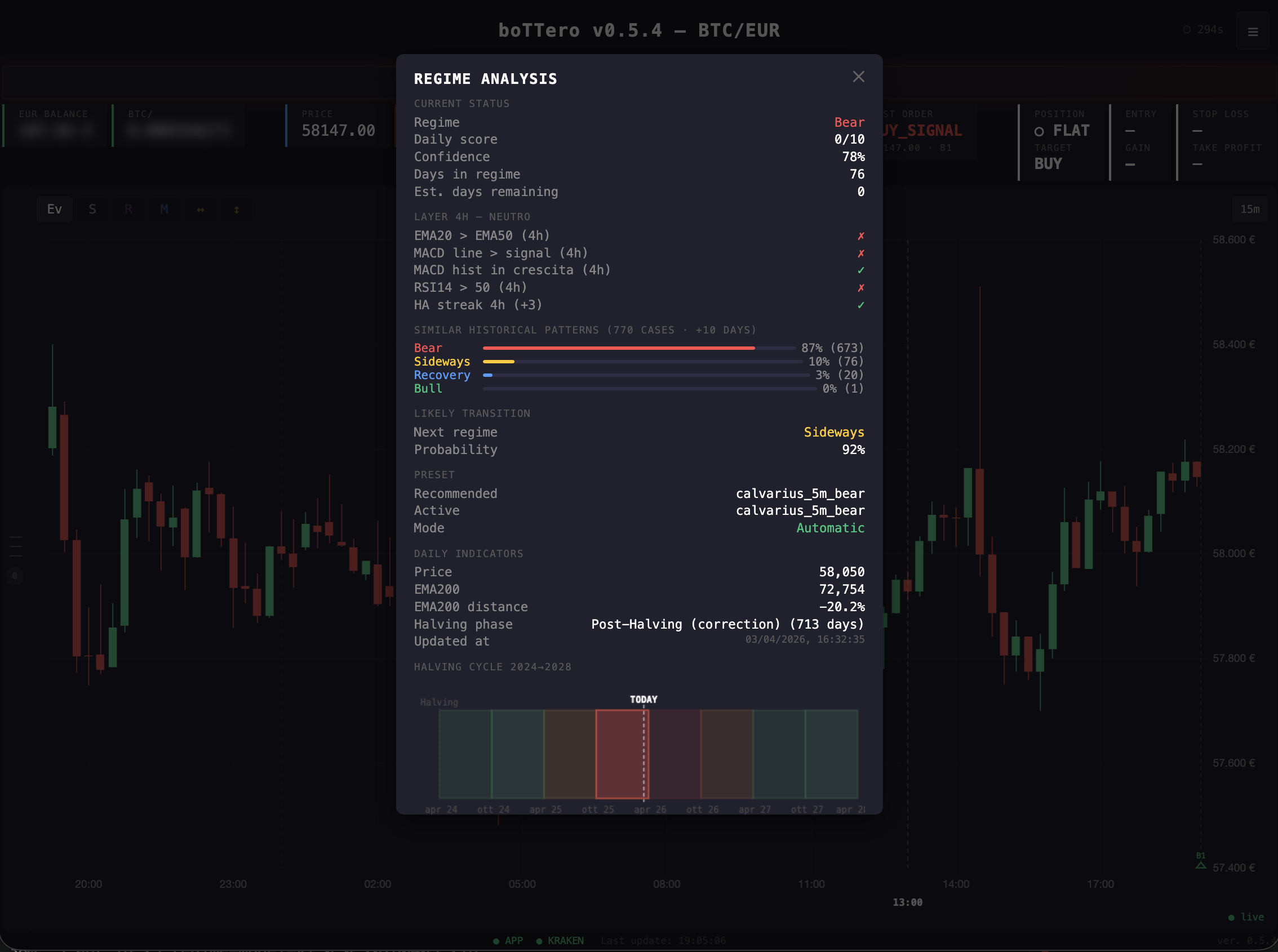
Regime Analysis
Regime Analysis shows the current market classification (BULL, RECOVERY, CHOP, BEAR), confidence score, active indicator signals, historical pattern matching, and the likely next regime. The bot uses this to automatically pick the right strategy preset. You can also check daily indicators and the current Bitcoin halving cycle phase.